Luxar Viewer User Guide
The Luxar viewer is a browser-based application for exploring nD scientific scenes
containing points, lines, Gaussian splats, and triangle meshes. It renders with WebGL
by default and has an opt-in WebGPU path (see the renderer URL parameter below), and
it loads data from Zarr stores served over HTTP.
To follow along without installing anything, open a scene on the live demo gallery at demos.luxarviewer.dev. Every panel and shortcut described below is available there apart from the Dataset Browser, which requires a data server that can list directories. The same viewer is deployed standalone at luxarviewer.dev, which takes any reachable archive as ?src=<url>.
Launching the Viewer
There are three common ways to open the viewer:
# Serve a dataset and open the viewer in one step
luxar serve scene.luxar.zarr --viewer

# Browse the bundled demos, then run one
luxar demo
luxar demo run lorenz

# Export a self-contained offline viewer
luxar export scene.luxar.zarr -o my_export/ --open
You can also start the viewer development server directly:
cd packages/luxar-viewer
pnpm dev
Then open http://localhost:5173/?src=http://127.0.0.1:8000 in a browser,
pointing src at a running Luxar data server. Port 8000 is the default for
luxar serve; use your configured --port value if you changed it.
Both trailing-slash forms are accepted. Prefer data source URLs without a trailing slash as the canonical spelling used in examples and logs.
Opening your own data in the hosted viewer
There is a fourth way that needs no install at all. The viewer is deployed standalone at luxarviewer.dev and will open any scene it can reach over HTTP:
https://luxarviewer.dev/?src=https://example.org/path/to/scene.luxar.zarr
Nothing is uploaded. The browser fetches the store directly from wherever you host it, so the data never passes through luxarviewer.dev — which also means the scene is exactly as private, and as durable, as the host you put it on.
Your host must allow cross-origin reads
This is the one thing that reliably goes wrong. The page is served from
luxarviewer.dev while the data comes from your host, so the browser treats
every chunk request as cross-origin and your host has to opt in. What it needs
depends on the store shape:
store |
requirements |
|---|---|
directory |
|
zipped |
the above, plus byte-range support: honour |
A plain static file host with CORS enabled is enough for a directory store.
What the failure looks like: the viewer loads but the scene stays empty, and the browser console shows requests blocked by CORS policy — not a 404. A 404 means the URL is wrong; a CORS error means the URL is right and the host is refusing to share it. Check the console before changing the URL.
Configuration for common hosts
Amazon S3 — bucket CORS configuration:
[{
  "AllowedOrigins": ["https://luxarviewer.dev"],
  "AllowedMethods": ["GET", "HEAD"],
  "AllowedHeaders": ["Range"],
  "ExposeHeaders": ["Content-Range", "Content-Length", "Accept-Ranges", "ETag"],
  "MaxAgeSeconds": 3600
}]
Cloudflare R2 takes the same JSON shape (Settings -> CORS policy). Google Cloud
Storage takes the equivalent via gsutil cors set, with responseHeader
carrying the exposed headers.
nginx:
location /scenes/ {
    add_header Access-Control-Allow-Origin "https://luxarviewer.dev" always;
    add_header Access-Control-Allow-Headers "Range" always;
    add_header Access-Control-Expose-Headers "Content-Range, Content-Length, Accept-Ranges, ETag" always;
    if ($request_method = OPTIONS) { return 204; }
}
Access-Control-Allow-Origin: * also works and is simpler if the data is public
anyway; naming the origin only matters when you want to keep the store readable
from your own pages but not from arbitrary ones. Note that neither choice makes
the data private — a public bucket is public to anyone with the URL, CORS or not.
Directory listings and .luxar-index.json
The Dataset Browser (O) can list a hosted folder of scenes so a reader
picks one instead of typing a URL. It tries, in order: a Zarr root document
(the folder is itself a scene), a WebDAV PROPFIND, the JSON or HTML listing a
server such as luxar serve, nginx or Apache emits, and finally a manifest you
write by hand, .luxar-index.json, at the folder root. Object stores and
static hosts (S3, R2, GitHub Pages) have no listing at all, so the manifest is
how a folder on them becomes browsable:
{
  "entries": [
    { "name": "embryo.luxar.zarr", "type": "zarr", "size": 734003200, "modified": "2026-09-01T12:00:00Z" },
    { "name": "archive", "type": "directory" },
    { "name": "README.md", "type": "file" }
  ]
}
name is required and is the entry’s path segment relative to the folder.
type is one of "zarr", "directory" or "file"; when omitted it is
inferred — a .zarr or .zarr.zip name is a scene, "isDirectory": true a
folder, anything else a file. size (bytes) and modified (any string) are
optional and shown in the listing. The manifest is fetched as
<folder>/.luxar-index.json, so a nested folder needs its own manifest at its
own root, and the host has to serve the dotfile (some static hosts hide them by
default). It is subject to the same CORS rules as the scenes it lists.
If you would rather not host anything, luxar export scene.luxar.zarr -o out/
writes a self-contained folder with the viewer and a stdlib-only serve.py; the
recipient runs python3 serve.py (file:// cannot open the viewer directly;
stock Ubuntu has no python command, only python3).
See Distributing scenes for the wider picture on sharing scenes, and DEMO_SITE_RUNBOOK for how the demo corpus itself is hosted, including its CORS setup and failure modes.
Opening a Zipped Scene
The viewer can open a .luxar.zarr.zip scene without extracting it.
Produce an archive directly by naming it as the compiler output:
from luxar import LuxarZarrCompiler

with LuxarZarrCompiler("scene.luxar.zarr.zip") as compiler:
    ...
You can also package an existing store by giving luxar optimize a .zip
destination:
luxar optimize scene.luxar.zarr scene.luxar.zarr.zip
Serve the directory containing the archive, then select it in the dataset browser:
luxar serve /path/to/scenes --viewer
You can also pass the archive URL directly to src, for example:
http://localhost:5173/?src=http://127.0.0.1:8000/scene.luxar.zarr.zip
The data server must support HTTP byte ranges and return 206 Partial Content.
luxar serve provides the required behavior. Archives are read-only: commands
that update an existing store in place refuse them, so write to a directory or
new archive instead. The viewer has no browser local-file or drag-and-drop
opening path for any scene format; serve the scene over HTTP instead.
Choose an archive for distribution, not speed: it turns a scene with potentially hundreds of thousands of hosted objects into one artifact to upload, download, or attach to a paper. On the benchmark fixture, a first archive load used about 39% more requests and 48–60% more bytes than the directory form, adding 1–7% to time to first render. A warm revisit needed only 4–6 requests and about 88 kB, so the extra cost is concentrated in the cold load.
URL Parameters
Append parameters to the viewer URL to control startup behavior.
Parameter |
Type |
Description |
|---|---|---|
|
string |
Zarr dataset URL or local path. |
|
string |
Initial theme. One of: |
|
JSON fragment ( |
Shareable view bookmark state. The Bookmarks rail panel creates and copies these links; opening one restores the camera, slices, rendering and layer appearance after loading |
|
string |
Browser tab title ( |
|
flag | WebSocket URL |
Attach this viewer to the serving app’s control hub. A URL selects an explicit hub and must be same-origin unless |
|
string |
Shared control-hub token, matching |
|
flag |
Permit an explicit |
|
module URL |
On the |
|
flag |
Force kiosk mode on as a hard operator override. It can lock a scene but cannot unlock authored kiosk mode. |
|
flag |
Enable the debug interface (developer use). |
|
flag |
Print per-query and per-part detail log lines (developer use; very chatty on large scenes). |
|
flag |
Disable ALL caching tiers (S-cache + L0/L1/L2). |
|
flag |
Disable only the SliceCache (per-slice decoded-geometry reuse); L0/L1/L2 stay on. |
|
flag |
Disable only the L2 persistent (OPFS) tier; L0/L1/S-cache stay on. For environments whose OPFS stalls — the deterministic sibling of the automatic circuit breaker. |
|
positive integer |
Override the page-wide concurrent OPFS read cap (default 64) for diagnosis. |
|
flag |
Enable cache debug logging to the browser console. |
|
flag |
Clear all caches on startup. |
|
flag |
Disable adjacent-chunk prefetching. |
|
flag |
Enable prefetch logging to the browser console. |
|
flag |
Decompress zarr blosc chunks on the main thread instead of the data workers (a safety valve and A/B switch; the decoded bytes are identical). |
|
flag |
Auto-open the data-loading monitor expanded on the Cache tab (L0/L1/L2 hit rates). |
|
flag |
Disable the replacement-LOD cross-fade (on by default): adjacent levels then swap hard instead of blending across the coverage boundary. |
|
flag |
Disable streaming brightness compensation for additive ladders (on by default): a partial prefix then brightens up as chunks arrive instead of rendering at full-level brightness. |
|
flag |
Force the finest replacement LOD regardless of projected screen coverage (capture quality; the gallery harness appends it). |
|
positive number |
Session-wide replacement-LOD threshold bias in screen-area units: |
|
|
Disable gsplat depth sorting (on by default); |
|
flag |
Disable the projected-density guard (per-node thinning + refinement rung cap on over-drawn nodes; on by default). |
|
positive number |
Session-only override of the density guard’s blendable cap, in elements per drawing-buffer pixel (configured default 4). |
|
flag |
Disable the WebGL blend-variant program warm-up (on by default): the first Layers-panel blend switch then pays the shader link cost on the click. |
|
flag |
Disable element-authored navigation and the link items of the right-click menu; |
|
flag |
Capture the scene-derived environment cube map once the load settles and download it (driven by |
|
|
Probe position for |
|
integer 16-1024 |
Cube face size for |
|
|
Select the default GLSL WebGLRenderer path or opt into the WebGPURenderer + TSL path. |
|
|
PROTOTYPE, |
|
flag |
Diagnostic flag for |
|
flag |
Opt into GPU timestamp queries (WebGPU only, |
|
flag |
Render every animation-loop tick, as before render-on-change. A kill switch: the pixels are identical, only the redundant re-renders of an unchanged frame come back. |
|
flag |
Debug only (needs |
|
number |
Pin the GPU-geometry byte budget in MB, bypassing auto-sizing. |
|
number |
Total in-memory cache pool (L0 + L1 + S-cache) in MB, for environments without |
|
number |
Worker pool size for this session ( |
|
number |
Concurrent chunk fetches for this session (the Settings “Prefetch Limit”, 1-12). Beats the stored value without rewriting it. |
|
number |
Multiplier on every overlay’s type (e.g. |
|
|
Axis-aligned opening view for the session: face the plane of the dimensions with those names, horizontal axis to the right. Beats the scene’s |
|
number |
Pin a fixed device pixel ratio and disable adaptive DPR (clamped to [0.25, native DPR]). Overrides the high-DPR ceiling, so |
|
|
Force the session’s JS input profile: pointer flags, hover capability, touch points, and device tier. This changes device-class fallback budgets ( |
|
|
Force the line join style for the session — applies only to |
|
|
Select the line rendering primitive (#1352). Default |
Flag parameters do not take a value; their presence activates the feature.
Example:
http://localhost:5173/?src=http://127.0.0.1:8000&theme=dark&noCache
Camera Controls
The viewer supports three camera control modes, cycled with the V key:
Orbit Mode (default)
Standard trackball camera for inspecting a scene from the outside.
Input |
Action |
|---|---|
Left-click + drag |
Rotate around the target point (natural drag ON) / pan (OFF) |
Right-click + drag |
Pan the camera (natural drag ON) / rotate (OFF) |
Middle-click + drag |
Dolly (either setting) |
Scroll wheel |
Zoom in/out |
Ctrl/Cmd + Scroll |
Adjust field of view |
The left/right drag mapping depends on the natural drag setting, which defaults to ON on macOS and OFF on other platforms: with natural drag, left-drag rotates and right-drag pans; without it, the mapping is inverted (left-drag pans, right-drag rotates).
Press F to recenter the camera so the entire scene fits in view.
Fly Mode
First-person controls for moving through the interior of a dataset.
Input |
Action |
|---|---|
W / A / S / D |
Move forward / left / backward / right |
Alt/Option + W / S |
Move up / down |
Q / E |
Roll left / right |
Arrow keys |
Look around |
Shift (held) |
Speed boost |
Right-click + drag |
Look around |
Left-click + drag |
Strafe (screen-space translation) |
Enable inertial mode (press I) to add momentum to fly movement so the camera coasts after releasing keys.
Ortho Mode
Orthographic projection for 2D viewing. The camera looks straight down one axis.
Input |
Action |
|---|---|
Left-click + drag |
Pan |
Scroll wheel |
Zoom |
Keyboard Shortcuts
Camera and View
Key |
Action |
|---|---|
F |
Recenter camera (frame entire scene) |
V |
Cycle control mode: Orbit, Fly, Ortho |
Space |
Toggle fullscreen |
Ctrl/Cmd + Scroll |
Adjust field of view |
Visual Modes
Key |
Action |
|---|---|
C |
Toggle cinematic mode (bloom, detector noise, vignette, chromatic lens distortion) |
I |
Toggle inertial mode (fly controls momentum) |
Animation Playback
Key |
Action |
|---|---|
K |
Play / pause animation |
Home |
Jump to dimension start |
End |
Jump to dimension end |
Shift + Up |
Increase animation speed |
Shift + Down |
Decrease animation speed |
Fly Mode Movement
Key |
Action |
|---|---|
W / A / S / D |
Move forward / left / backward / right |
Alt/Option + W / S |
Move up / down |
Q / E |
Roll left / right |
Arrow keys |
Look direction |
Shift (held) |
Speed boost |
State Export
Key |
Action |
|---|---|
Ctrl+Shift+S |
Export viewer state to clipboard as JSON |
UI Panels
Toggle panels with their keyboard shortcuts or through the help overlay (H).
Help Overlay (H)
Displays the full list of keyboard shortcuts inside the viewer.
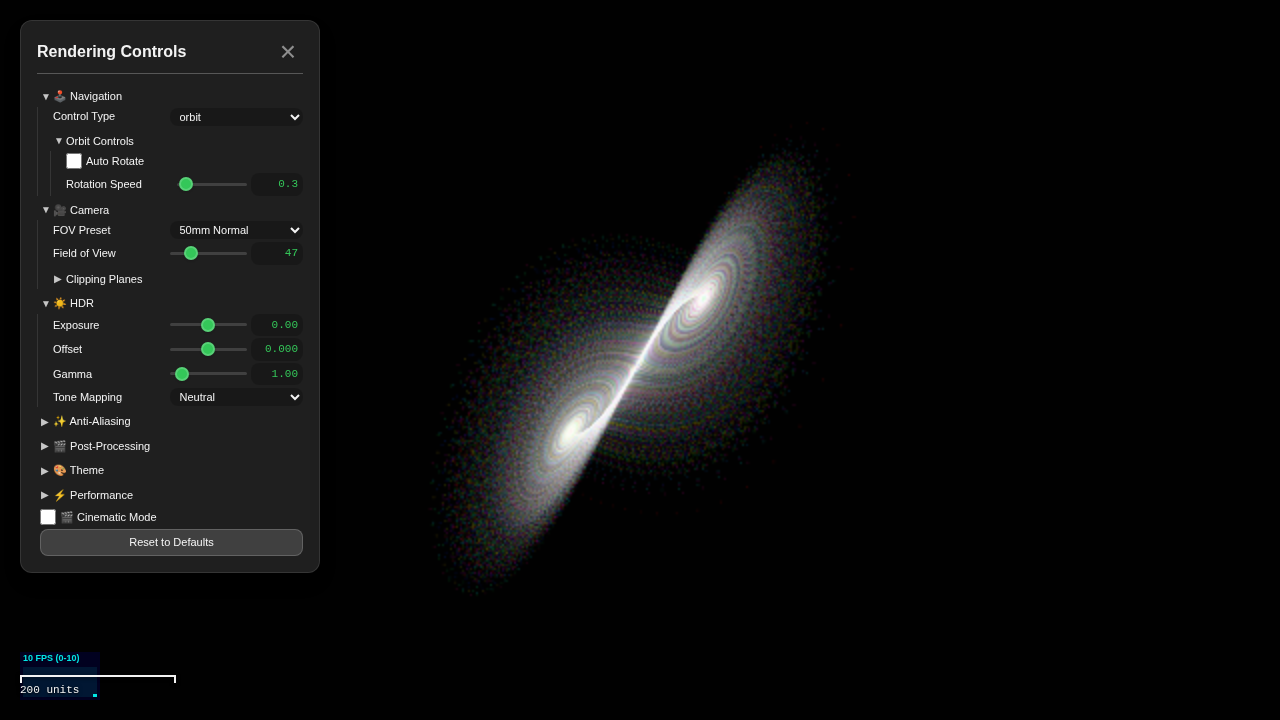
Rendering Controls (R)
Adjust visual parameters in real time:
Tone mapping – algorithm and exposure
Bloom – glow effect strength, radius, and threshold
Cinematic effects – bloom, vignette, detector noise, and chromatic lens distortion
Anti-aliasing – FXAA, MSAA, or SSAA
Detector noise – physics-based Poisson + Gaussian + FPN simulation
Changes persist to localStorage for the current scene.
Dimension Sliders (N)
For datasets with more than three spatial dimensions, this panel shows a slider for each non-displayed dimension. Drag a slider to move the slice position along that axis. See the nD Navigation section below.
Performance Monitor (P)
Displays one live metric at a time — click it (or press Enter/Space) to cycle between frames per second, frame time (ms), and a scrolling FPS graph. Useful for diagnosing performance on large scenes.
Recording Panel (T)
Controls for capturing image sequences or video from the viewer. Open the panel, configure frame rate and duration, and start recording.
Dataset Browser (O)
Browse and switch between available datasets served by the data server.
Scale Bar (B)
Displays a physical scale bar overlay when the scene defines spatial units (nm, um, mm, cm, m, etc.).
Colormap Legend (J)
Shows the active colormap and its value range when a colormap is applied to the scene.
Layers Panel (L)
Displays a list of all data nodes in the scene with toggles for visibility and opacity control.
For a Gaussian-splat layer converted with luxar gsplat convert, the window is
labelled Splat amplitude and is in the data’s own units. Hover the label for
the unit (e.g. “counts above background”), the data’s own range with its floor
(e.g. “Data range: 0 – 1,597 (floor 405)”; RGB / multichannel layers show it in
the Colour range tooltip) and why the window sits below it: each value is one
Gaussian’s PEAK amplitude, overlapping splats sum to the data value, and the view
additionally sums along each ray. How bright the layer renders is the
separate Brightness control (the node’s display_gain, on a logarithmic
track). It reads RELATIVE to the brightness the scene opened with — ×1 is the
opening exposure, double-click returns to it, and the tooltip gives the absolute
gain — and it changes neither the window nor the colormap. With several layers
selected, a window or Brightness change applies to each as the same fraction of
its own range or authored gain. See docs/guides/user/LUXAR_ZARR_FORMAT.md
§ “Amplitude units and display gain”.
Overlays (U)
Screen-space annotations (text, images, videos, HTML) positioned over the 3D canvas. Overlays are defined in the zarr scene by the Python API and rendered as HTML elements. Some overlays are dimension-aware: they appear or disappear as you navigate through dimensions. Press U to toggle all overlays on/off.
Video overlays (Scene.add_video) are muted, looping clips stored inside the
scene; a clip plays only while its dimension filter matches, so a story scene
with one turntable per slot decodes one video at a time. A VP9 WebM with an
alpha channel is drawn transparent over the data in Chrome and Firefox; Safari
cannot decode it and shows the clip’s poster image instead.
Animation Playback
When a dimension is marked as animatable (for example, time), the viewer can play through its range automatically.
Action |
Key |
|---|---|
Play / pause |
K |
Jump to start |
Home |
Jump to end |
End |
Speed up |
Shift + Up |
Slow down |
Shift + Down |
Animation loops according to the configured loop mode: once (stop at end),
loop (restart from beginning), or bounce (reverse direction at each end).
The loop mode and direction can be set through ViewerConfig in Python (see
below).
The Detail section of the same menu decides how deep each frame’s additive
ladder is loaded while a dimension plays or is scrubbed. Auto (the default)
pins every ladder at the first rung whose energy stamp reaches the viewer’s
threshold, so a heavy time-lapse reads consistently and the frame rate adapts
to the data; a rung count or All pins the depth explicitly; Fast streams
whatever is resident within each tick (quick cadence, quality varies from frame
to frame). Scenes can author the default with
ViewerConfig(playback_lod_depth=...) — an integer rung count, "all",
"auto" or "fast".
Screenshots and Recording
Press G to capture a single screenshot immediately.
Press T to open the recording panel for multi-frame capture.
Press Ctrl+Shift+S to export the full viewer state (camera, settings, dimension positions) to the clipboard as JSON. This JSON can be loaded back via
ViewerConfig.from_file()in Python.
Configuring the Viewer from Python
Set viewer defaults at scene-creation time by passing a ViewerConfig to the
scene. These values are stored in the Zarr archive and applied when the viewer
loads the dataset.
import luxar

vc = luxar.ViewerConfig(
    title="Rivers of Earth",  # names the browser tab (document.title)
    theme="dark",
    camera=luxar.CameraConfig(
        position=(0, 5, 20),
        target=(0, 0, 0),
        fov=50,
    ),
    bloom_enabled=True,
    bloom_strength=0.4,
    control_type="orbit",
    auto_rotate=True,
    # Turntable rate in REVOLUTIONS PER MINUTE: a full turn takes
    # 60 / auto_rotate_speed seconds, so 0.25 is one turn every four minutes
    # and 3.0 is one every twenty seconds. (The viewer's Navigation popover
    # shows this as "Rotation Period (s)" — the same setting asked the other
    # way round, so it reads in the same unit as the dolly period below.)
    auto_rotate_speed=0.25,
    # Turntable axis. Either a CAMERA-frame axis — "vertical" (screen-up, the
    # default), "horizontal" (screen-right — the scene tumbles over the top),
    # "view" (the view direction — a pure roll, the camera never moves) — or a
    # fixed scene axis: "world-x" / "world-y" / "world-z".
    #
    # Which family you want depends on the framing. A camera-frame turntable
    # always looks the same on screen whatever the scene's orientation, but
    # when the camera looks DOWN at a subject (most composed openings do) the
    # subject's own axis precesses: a spin plus a wobble. A world axis is the
    # classic turntable — pick the one matching the subject's up and it spins
    # about its own axis at any elevation. The two coincide exactly when the
    # camera is level, so switching frames there changes nothing.
    #
    # One caveat on "view" — and on a world axis as it nears the view
    # direction: the LOD selector measures a node by the axis-aligned screen
    # box of its projected bounds, which is not roll-invariant — a square
    # footprint swings about 2x in area at 45°, a full level of the halving
    # ladder. A rolling scene parked near a switch threshold will therefore
    # breathe between levels (and a turntable recording pays extra LOD-settle
    # ticks per frame). Hysteresis softens it. "vertical" and "horizontal"
    # change the view legitimately and are not affected in the same way. A
    # world axis is affected to the extent that it approaches the view
    # direction. At exact alignment the turntable is a pure roll with a
    # stationary camera.
    auto_rotate_axis="vertical",
    # Auto-dolly: the turntable's radial sibling. Instead of going AROUND the
    # subject the camera breathes toward and away from it on a sine — the
    # equivalent of turning the mousewheel back and forth. Combined with
    # auto_rotate it gives the slow approach-and-retreat hero shot; on its own
    # the parallax is a depth cue a still cannot give.
    #
    # The amplitude is a PERCENT of the viewing distance, so it means the same
    # thing at any scene scale: 15 swings between d/1.15 and d x 1.15. The
    # slider goes to 95 (nearly halving and doubling the distance), and a big
    # swing is a legitimate choice — but it is not free, and the cost is not
    # linear. Screen area goes as 1/d^2, so the swing moves projected area by
    # (1 + a)^4 between the far and near extremes: 1.75x at 15%, 5.06x at
    # 50%, 14.46x at 95%. The LOD ladder answers by loading finer levels at
    # the near extreme, and THAT is what scales. Measured over one 3 s cycle
    # on a 100-group demo:
    #
    #     amplitude   area swing   resident elements   LOD transitions
    #        15%         1.75x           118k                161
    #        50%         5.06x           526k                392
    #        95%        14.46x          2.29M                520
    #
    # A 6x bigger swing costs a 19x resident set. Locally, with a warm cache,
    # that is nearly free (144 -> 129 fps on an M-series laptop). On a hosted
    # scene, where cost is requests rather than bytes, it is not — every cycle
    # re-walks the ladder and anything the cache has evicted is re-fetched.
    # Nothing about a large amplitude is unsafe: the distance clamps sit orders
    # of magnitude away (a scene framed at 176k units clamps at 327). Choose by
    # what the motion is worth, not by fear of it.
    #
    # The user keeps control of zoom while it runs: both the wheel and the
    # dolly only ever multiply the distance, so a scroll moves the centre the
    # camera is breathing around rather than fighting the animation. Switching
    # it off leaves the camera where the swing had reached, and re-enabling
    # resumes from there — the same way stopping the turntable leaves the scene
    # at its current angle. It also works in ortho mode, where it breathes the
    # orthographic zoom instead.
    auto_dolly=False,
    auto_dolly_amplitude_percent=15,
    auto_dolly_period=10,  # seconds per full in-and-out cycle
)

dims = luxar.Dimensions.default_3d()

with luxar.LuxarZarrCompiler("output.luxar.zarr") as compiler:
    scene = compiler.create_scene(dimensions=dims, viewer_config=vc)
    # ... add geometry to scene
Loading a Viewer Snapshot
Export a viewer state with Ctrl+Shift+S in the browser, save the JSON to a file, then reload it in Python:
vc = luxar.ViewerConfig.from_file("my_view.json")
vc.bloom_strength = 0.8  # tweak as needed

dims = luxar.Dimensions.default_3d()

with luxar.LuxarZarrCompiler("output.luxar.zarr") as compiler:
    scene = compiler.create_scene(dimensions=dims, viewer_config=vc)
    # ... add geometry to scene
Priority Chain
Settings are resolved with the following priority (highest first):
localStorage overrides – per-scene user changes made in the browser, except that an authored camera position is restored with its resolved scene FOV. They are kept per URL and remember the scene’s
content_hash: a store rebuilt and served at the same address sets them aside and loads with its own defaultsviewer_config – defaults stored in the Zarr file
Built-in defaults – the viewer’s own defaults
The browser tab title has its own two-step chain: an authored
viewer_config.title wins; otherwise the viewer uses the ?title= URL
parameter, which serve-family commands (luxar serve --viewer,
luxar demo run) derive from the dataset’s file name — so every tab names
the scene it shows instead of a row of identical “Luxar Player” tabs.
Switching datasets inside the viewer retitles the tab after the dataset you
switched to (both of the other two name the scene you just left). With no
?title= at all, the viewer derives the name from the store ?src= points
at — which is what keeps a reloaded or shared post-switch link named.
Axis-aligned opening views
CameraConfig(view_axis="xy" | "xz" | "yz") makes the auto-framed opening
camera (and Home/F) face one coordinate plane, horizontal axis first: xy
looks along z with x to the right, xz along y, yz along x. The letters are
scene DIMENSION NAMES, resolved against the displayed dimensions, so a scene
whose columns stay in (z, y, x) order still faces its XY plane; missing names
fall back to world X/Y/Z. The SIGN of up along the vertical axis picks the
convention: the default up (+y) draws the vertical axis pointing up, a
negative one draws it pointing down. When up is orthogonal to the chosen
vertical axis (a ?viewAxis= override picking a face the author did not), the
sign of up’s dominant component decides. Every preset is a rotation of the
data, never a mirror.
luxar gsplat convert writes view_axis="xy" with up=(0, -1, 0) for fitted
image volumes: the IMAGE CONVENTION of Fiji and napari (x right, y down, looking
along +z through the stack). An explicit position pins the pose and wins over
the preset; waypoint cameras ignore it. ?viewAxis= overrides it per session.
Available Configuration Categories
Category |
Example fields |
|---|---|
Scene identity |
|
Camera |
|
Theme |
|
Tone mapping |
|
Bloom |
|
Controls |
|
Cinematic |
|
Detector noise |
|
Anti-aliasing |
|
Performance |
|
Overlay text |
|
Exported launch |
|
Fly controls |
|
UI visibility |
|
Dimensions |
|
Animation |
|
Story waypoints |
|
Set allow_high_dpr=True if your scene is line-dominated — a river network,
a tractogram, a wiring diagram. Phones and tablets cap this setting at DPR 2;
laptops and desktops use the panel’s native DPR. The viewer renders at CSS
resolution by default even on a Retina display, because a 2x panel costs 4x the
fragment work and soft-edged emissive geometry barely rewards it. Measured against DPR 2,
brightness and coverage hold to within 2.5% on every geometry type and the whole
visible effect is a 15-35% loss of fine detail: on points and splats that is
mild softening, but on dense thin lines the individual strands stop being
separable. Line scenes are also the cheapest place to spend the pixels, because
they are not fill-bound — a trajectory scene measured 1.06-1.17x faster at DPR 1
against 2.6-2.7x for a point cloud, so you buy the detail back for almost no
frame time. Leave it off for points, gsplats and mesh unless a particular scene
proves otherwise.
Setting cinematic_mode=True expands the whole cinematic preset (ACES tone
mapping, a subtle wide bloom, detector noise, vignette, and the 35 mm
chromatic lens + FOV) for every field the scene does not set itself — so you
can enable the look and still override, say, bloom_strength on top of it.
Note that the preset also widens the camera to the 35 mm field of view (63°),
which is applied before automatic framing so the fitted subject occupancy
matches that lens. Pin camera.fov (or camera.fov_preset) only when composing
an explicit camera pose for a specific lens; the preset then leaves the authored
FOV alone but still applies its 35 mm distortion to that different framing. The
bundled demos instead leave the FOV unpinned and compose their authored positions
for 63°. A returning visitor’s stored FOV still takes precedence for auto-framed
scenes; an authored camera position is always restored with the resolved scene FOV
it was composed for.
Waypoint trajectories
A waypoint flight has three independent parts, each its own argument:
trajectory— the PATH the camera takes.speedorduration_ms— how LONG the flight lasts.easing— how the speed varies along the way.
from luxar import CameraConfig, Waypoint
from luxar import trajectories as T

Waypoint(
    when={"story": 3},
    camera=CameraConfig(position=(12, 3, 8), target=(10, 2, 6)),
    trajectory=T.ZoomPan(rho=1.6),     # or a name for the defaults: "zoom-pan"
    speed=0.35,                        # paced by perceived distance (below)
    duration_range_ms=(5000, 16000),   # bounds on the paced duration
    easing="cruise",
)
Paths
Trajectory |
What the camera does |
Parameters |
Reach for it when |
|---|---|---|---|
|
The focus target slides in a straight line; the camera’s view direction turns (slerp) and its distance changes geometrically. Never passes through the target. |
— |
A short re-aim. On a long jump at close range it stays close, so the data races across the screen mid-flight. |
|
Van Wijk & Nuij’s smooth and efficient zooming and panning (InfoVis 2003): the path that minimises perceived motion. It pulls back while it travels and dives in at the end, moving at a constant perceived speed. A short hop barely zooms; a long jump rises high enough to keep both ends in view. |
|
Long jumps across a dataset. The smoothest of the set. |
|
|
|
A predictable hop of a chosen proportion. Unlike |
|
The camera position and the target each move in a straight line: a dolly. |
— |
A deliberate pass through the data, or the simplest possible move. It may cut through the scene; |
|
The camera and the target each follow a great circle about a pivot, their distances from it changing geometrically. The camera goes around the cloud, not through or over it. |
|
Touring an object or a map from the outside, a UMAP included. |
|
First-person: the camera flies in a straight line looking ahead along its path, turning from the start target over the first |
|
A journey into the data, where facing the direction of travel matters more than keeping the target centred. |
|
Two legs through an intermediate pose, each following |
|
Stepping back out (to an overview, say) between two close-up stops, so the visitor sees where they are going. |
Every trajectory but Orbit needs a perspective camera; in ortho mode a flight
follows Orbit.
The turntable. With auto-rotate on, Orbit, ZoomPan and Arc keep the
turntable’s live viewing direction and move only the target and the distance,
so the spin never pauses. Straight, Swing and FlyThrough decide where the
camera looks along the way, so they take the view direction over for the flight
and land on the authored pose; the spin resumes from there. Via follows its
chosen leg’s turntable behaviour.
Timing: speed or duration_ms
duration_ms gives every flight the same time whatever its length, so a long
jump moves fast and a short hop crawls. speed instead paces the flight by
its perceived length: the flight lasts that length divided by speed, clamped
to duration_range_ms (default 1.5–8 s), and every flight then moves at the same
cruising pace. The perceived length is measured along the actual path, the same
way for every trajectory:
pan in view heights — one screen’s worth of travel costs the same close up or far away;
zoom in log scale — a 10× zoom costs the same at any scale, and a 100× zoom twice as much;
turn in radians — a quarter turn costs about as much as panning a screen.
So travel time follows what the visitor sees, zoom included. As a guide, the
steps of the ESM protein tours measure 0.05–5.4 units (median about 3.4); their
speed=0.35 with duration_range_ms=(5000, 16000) gives typical flights of
about 10 s and the longest about 15 s. When speed is set it takes precedence
over duration_ms.
Easing
easing maps time onto the path, for any trajectory:
Easing |
Speed profile |
Character |
|---|---|---|
|
smoothstep: zero speed at both ends |
The familiar ease. Its acceleration jumps at take-off and landing, a slight kick. |
|
smootherstep: zero speed and zero acceleration at both ends |
No kick, but the motion bunches into the middle of the flight. |
|
smooth ramps over the first and last fifth, constant speed between |
Paced travel. The camera visibly moves for nearly the whole flight, so the felt duration matches the real one. The natural partner of |
|
constant speed throughout |
Mechanical; starts and stops abruptly. |
For a tour, ZoomPan or Swing with easing="cruise" and a speed is the
combination that reads as a journey rather than a cut: distance sets the time,
the path stays readable, and the camera keeps moving the whole way.
Sound
A scene may carry sound nodes (scene.add_sound, see
docs/guides/specs/SOUND_SPEC.md): an ambient bed, a narration bound to a
story step, or a spatial source that gets louder as the camera approaches. Their
audibility is the same hidden-dimension slab rule that decides which points are
visible, so scrubbing a story dimension starts and stops the clips that belong
to each step. When a loaded scene has sound nodes a Sound button appears in
the rail: click mutes everything (persisted across scenes), while right-click or
a hold opens the mixer (master gain, the ambient / voice / effects buses,
equal-power vs HRTF panning). The voice bus ducks the ambient bed while a
narration plays.
Scene defaults live in ViewerConfig(audio=AudioConfig(...)), and a controller
drives the same knobs through setAudio(), playSound(), stopSound() and
getViewerState().audio.
Sound nodes authored with layer=True appear in the Layers panel with a
sound badge: the eye mutes that node (a parent group’s eye silences every
sound under it), an inline slider sets its gain, and the name’s tooltip shows the
clip’s licence, author and source. Narration authored with trigger="on_arrive"
starts when a story flight lands (a flight you cut short still counts as
arrived; one superseded by the next story does not). A node with attach_to
follows another node’s centre, and an ambisonic="foa" bed is a sound field
that stays fixed to the world as you turn the camera. The Recording panel’s
“Include Audio” option (Advanced) records what you hear into real-time videos;
frame-by-frame captures stay silent.
Browsers refuse to start audio without a gesture on the page. In a regular tab the viewer shows a one-time Tap to enable sound overlay that the first click or key dismisses. For an unattended kiosk launch Chrome with the autoplay policy relaxed so the context starts on load and the gate never appears:
google-chrome --kiosk --autoplay-policy=no-user-gesture-required "http://host:5173/?src=…"
See luxar.ViewerConfig docstring for the full field list with types and
valid ranges.
Tips and Troubleshooting
Viewer shows a blank scene or zero points
For nD datasets, the initial slice position may be empty. Press N to open dimension sliders and navigate to a populated region.
Verify that
srcpoints at the dataset root rather than its parent listing.
Performance is poor with large datasets
Press P to check FPS and identify bottlenecks.
Reduce anti-aliasing quality (disable SSAA, switch to FXAA).
Disable bloom and lower anti-aliasing quality in the rendering panel.
Adaptive resolution automatically lowers pixel density during interaction.
Check Allow High DPR in the Performance panel is off (it is by default). On a HiDPI display it costs four times the pixels, which is rarely worth it for points and splats. Conversely, if a scene of thin lines looks mushy rather than slow, turning it ON is usually cheap — line scenes are not fill-bound.
Camera feels stuck or wrong
Press F to recenter the camera on the scene bounding box.
Press V to cycle to a different control mode.
If fly mode momentum is disorienting, press I to toggle inertial mode off.
Caching issues
Add
?clearCacheto the URL to wipe all cached data on startup.Add
?noCacheto disable caching entirely for debugging.
Exported state does not restore correctly
Ensure you use
ViewerConfig.from_file()and not manual JSON parsing.The JSON format is viewer-version-specific; re-export if the viewer has been updated.
Data fails to load (404 errors)
Check that
luxar serveis running and the port matches thesrcURL.Verify that the dataset metadata files are reachable from the
srcURL.Verify the Zarr archive is complete (
luxar info <path>can help).